ML Controls [Tab 5]
The Moving Light (ML) Controls display provides access to non-intensity (NPs) controls for multiple-parameter devices.
ML Controls can be opened in a standalone tab from the Workspace Layout Menu or by using [Tab] & [5].
This display can also be accessed:
- Via a connected keyboard with F7 or CONTROL+7.
On Element 2 and Element Classic, the display can be opened in the Central Information Area (CIA) by pressing the [ML Controls] button.
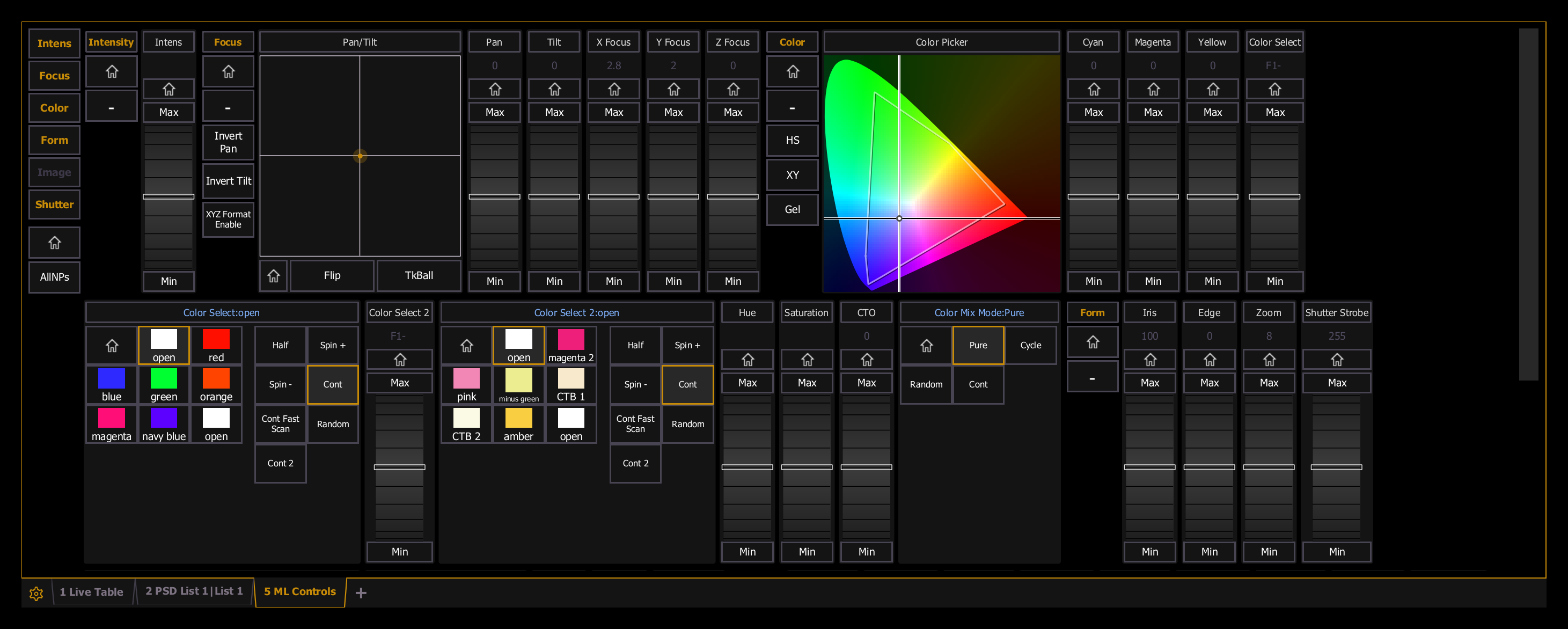
You will need to have a multi-parameter device selected to properly view this display. The display will change based on the device selected. If you have a device that only has intensity and color parameters, the ML Control display will only show intensity and color parameters.
When there is room, multiple rows of parameters will display, and you can scroll the display vertically.
There are category shortcut keys on the left side of the ML Controls display. Press a key to quickly access those controls.
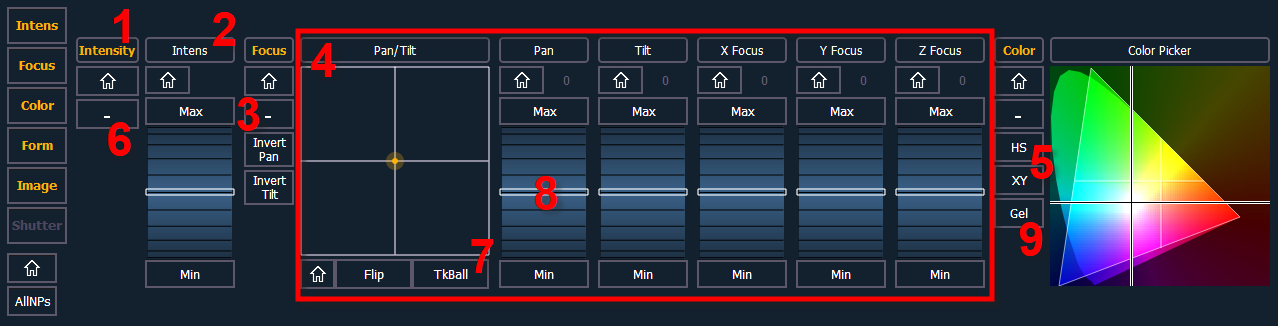
- Category button (Clicking this button will put the category on the command line.)
- Parameter button (Clicking the button will put the parameter on the command line.)
- Home button allows you to home a specific parameter or attribute of a parameter.
- Parameter attributes
- Selects the color picker.
- Collapses or expands categories.
- Gives pan and tilt functionality to a mouse or trackball.
- Virtual encoder (Click and hold close to the center line for slow movement, further away for faster movement.)
- Opens the gel picker.
{Popup ML Controls}, a pop-up window version of the ML Controls can be opened for quick access to these functions.